Before You Plug In: Can Your Laptop Actually Drive Two Monitors?
The docking station doesn't decide how many displays you get — your laptop does. A docking station passes through whatever your host's graphics and ports already support, so a laptop capped at one external display stays capped at one no matter how many video ports the docking station has. Check the host first, and you'll avoid the most expensive mistake here: buying hardware that physically can't do what you need.
Here's what to confirm, by host type:
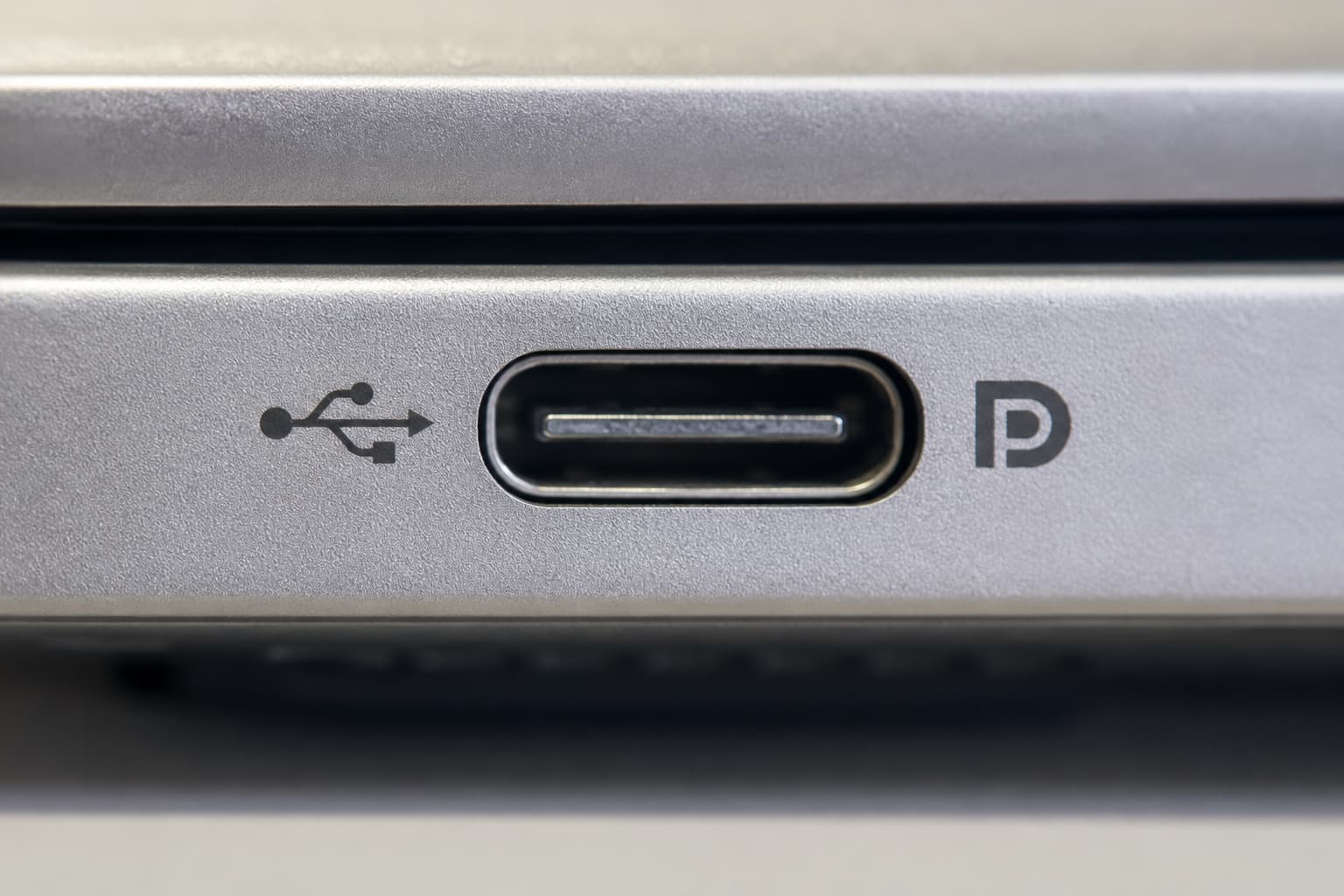
• Windows USB-C laptops: The USB-C port has to support DP Alt Mode (DisplayPort Alternate Mode) — the mechanism that lets a USB-C port carry video at all. Look for a small DisplayPort logo next to the USB symbol on the port, or check the spec sheet for "DisplayPort over USB-C" or "DP Alt Mode." How many independent display streams the host GPU can output is what ultimately sets your dual-display ceiling — and that number lives in the laptop's spec sheet, not the docking station's. Check the manufacturer's product page under "graphics" or "external display support" for the maximum number of displays; integrated graphics often cap at two or three total, including the built-in screen. If everything's already connected, the quickest tell is whether Windows display settings shows two separately numbered external monitors rather than one.
• Thunderbolt 4 or USB4 laptops: These run at 40 Gbps and generally drive two 4K@60Hz displays natively. This is the smoothest path — if your laptop has the port, most of the compatibility questions below disappear.
• Macs — check by chip, because the limits changed recently: Base M1 and M2 chips support only one external display natively. The M3 MacBook Air supports two external displays, but only with the lid closed (clamshell mode). The M4 and M5 chips — including the MacBook Air and the base 14-inch MacBook Pro after its software update — support two external displays with the lid open. Pro and Max chips support more. If you have a base M1 or M2 Mac and need a second external screen, native DP Alt Mode won't get you there; you'll need a DisplayLink-based docking station, covered below. Not sure which chip you have? It's listed under the Apple menu → About This Mac. Then confirm the display limit against Apple's support page for your exact model.
Three Ways a Docking Station Drives Dual Displays — and Which One You Need
Docking stations create that second display in one of three ways, and the right one depends entirely on your host.
DP Alt Mode (native). The host GPU drives the monitors directly through the docking station. No drivers, low latency, full image quality. The catch is that you're bound by the host's native stream count and bandwidth — this path works when your laptop already supports the number of displays you want. Best for: Windows USB-C and Thunderbolt/USB4 laptops that natively handle two displays.
DisplayLink (driver-based). A chip in the docking station compresses video and sends it over the USB data path; a driver on the host reconstructs it into a virtual display. This sidesteps the host's native display limit, which makes it the route for base M1/M2 Macs that need a second screen, or any laptop pushing more displays than it natively supports. The trade-offs are real: you install a driver on Windows and macOS, it uses some CPU, and it doesn't pass HDCP — so protected streaming services may not play on a DisplayLink-driven screen. Best for: adding displays beyond what the host natively allows.
Thunderbolt 4 / USB4. The most headroom of the three — 40 Gbps is enough for dual 4K@60Hz natively, no drivers. Best for: demanding multi-display or high-refresh setups, if your laptop has the port.
So: native two-display laptop, pick DP Alt Mode; base M1/M2 Mac or you want more screens than the host supports, pick DisplayLink; heavy dual-4K work and you have the port, pick Thunderbolt 4 / USB4.
Why Your Setup Mirrors Instead of Extends (Especially on a Mac): MST vs SST
If both monitors show the same picture, that's mirroring, and the cause is usually how the second display stream gets created.
MST (Multi-Stream Transport) splits one DisplayPort stream into several independent displays. Windows supports it, which is how many single-cable USB-C docking stations drive two extended monitors on a PC. macOS does not support MST. On a Mac, a DP Alt Mode docking station that relies on MST for its second output will mirror, not extend — and that's expected behavior, not a defect or a setup error you can toggle away. SST (Single-Stream Transport), which is what a Mac falls back to, carries one display stream, so the second monitor just duplicates the first.
To get genuinely extended displays on a Mac, you have two options: a host chip that natively supports the display count you want (M4/M5, or Pro/Max), or a DisplayLink-based docking station, which doesn't depend on MST at all. This single distinction is behind the most common "my dual-monitor docking station isn't working" complaint, so it's worth confirming before you buy.
Connect Two Monitors to Your Docking Station in 5 Steps
With compatibility settled, the hookup is quick.
1. Confirm the prerequisites. Host supports the display count (the sections above), the docking station type matches your host, and the upstream cable is rated for the bandwidth you need. A data-only or low-spec USB-C cable will throttle or drop video — use the cable that shipped with the docking station, or one explicitly rated for the protocol.
2. Connect the docking station to the laptop with a single USB-C or Thunderbolt cable. If the unit has its own power adapter, plug it in — externally powered docking stations are what you want for high-resolution dual displays plus peripherals (more on that in the power section).
3. Connect each monitor to a separate video port on the docking station — HDMI, DisplayPort, or USB-C, one cable per monitor. Don't try to feed two monitors from one HDMI port with a passive HDMI splitter: a passive splitter duplicates a single image across both screens and can't create two independent desktops. If the docking station has only one HDMI port, run one monitor off HDMI and the other off the DisplayPort or USB-C video output.
4. Install drivers — only for DisplayLink-based docking stations. Download the current DisplayLink driver for your OS, install it, and reboot. Native DP Alt Mode and Thunderbolt connections don't need a display driver; DisplayLink-based output requires installing the DisplayLink driver on Windows and macOS.
5. Set the displays to extend. On Windows: Settings → System → Display → under Multiple displays, choose "Extend these displays," then drag the monitor icons to match your physical layout. On macOS: System Settings → Displays, arrange the displays, and make sure "Mirror Displays" is unchecked.
Running 3 or 4 Monitors — and the Bandwidth Reality of Dual 4K@60
More screens and higher resolutions need more bandwidth, so set your expectations before you buy.
Three or four displays generally call for a Thunderbolt 4 / USB4 docking station, or a DisplayLink-based unit to add displays past the host's native limit. And dual 4K@60Hz isn't automatic even with two displays. A single 4K@60Hz stream needs roughly 12.5 Gbps. To run two of them over USB-C DP Alt Mode, you need DP 1.4 — that's HBR3, about 25.9 Gbps effective over four lanes — and usually DSC (Display Stream Compression), plus monitors that support it. Fall below that line (older DP Alt Mode, a two-lane configuration sharing bandwidth with USB data, or a marginal cable) and the displays drop back to 4K@30Hz or 1080p, or one cuts out entirely. Thunderbolt 4 and USB4, at 40 Gbps, carry dual 4K@60Hz with the most margin.
The practical takeaway: if 4K at 60Hz on both screens matters, confirm three things — the host outputs DP 1.4 Alt Mode (or Thunderbolt/USB4), the monitors support DSC, and the cable is rated for it.
How to Verify It Actually Worked
Don't assume the setup is right because something lit up. Check these:
• Extended, not mirrored. Each monitor should show different content. Drag a window from your laptop screen across both externals — if it moves continuously, you're extended.
• Full resolution and refresh rate per monitor. On Windows: Settings → System → Display → Advanced display, and read the resolution and refresh rate for each monitor. On macOS: System Settings → Displays, then click each display. Confirm you're getting the rated numbers (for example, 4K at 60Hz), not a silent fallback.
• Stable for five minutes. No flicker, no dropped frames over a few minutes means the link is comfortably within bandwidth rather than borderline.
• Laptop charging. If your docking station supplies upstream power, the battery should show charging. If it doesn't, the upstream PD wattage may be too low for your laptop — see below.
Troubleshooting: The 3 Most Common Dual-Monitor Failures
One monitor shows no signal or isn't detected. Usually the cable bandwidth is too low, the host can't output that many streams, or a video port isn't active. Swap to a cable rated for the protocol, re-confirm the host's display limit, update the GPU driver and the docking station's firmware, and click "Detect" in display settings.
Both monitors mirror instead of extending. Either the second stream is MST-based on a platform that won't extend it — most often macOS, which doesn't support MST — or the OS is simply set to mirror. Switch to extend in display settings; on a Mac, move to a DisplayLink-based docking station or a host chip that natively supports two displays.
Laptop won't charge, or peripherals keep dropping. The upstream PD may be too low for the laptop, the USB bandwidth may be oversubscribed, or a bus-powered docking station can't supply enough current. Use an externally powered docking station whose upstream PD output meets your laptop's minimum requirement, and move high-draw peripherals to powered ports. Keep the two power paths straight: upstream PD is what the docking station feeds back to charge your laptop, while downstream power is what its ports supply to peripherals — a unit can be fine on one and short on the other.
Compliance and Safety Notes
A few things worth checking before you standardize on a docking station, especially for a fleet:
• Match protocol names to real rates. USB 3.2 Gen 1 is 5 Gbps, Gen 2 is 10 Gbps, Gen 2×2 is 20 Gbps, USB4 and Thunderbolt 4 are 40 Gbps, and Thunderbolt 5 is 80 Gbps. Don't assume a USB-C port is Thunderbolt — USB4 and Thunderbolt 4 run at the same 40 Gbps but use different certification programs.
• Read PD as delivered power. A docking station's stated Power Delivery wattage should reflect what actually reaches the host after the unit's own overhead. Check the upstream figure rather than a headline number.
• Market conformity. Docking stations sold into the US, EU, or UK need the applicable FCC SDoC, CE, UKCA, and RoHS conformity. Confirm these before a bulk rollout.
• HDCP on DisplayLink. DisplayLink-driven displays don't pass HDCP, so protected streaming services may not play on those screens. If streaming on a DisplayLink output matters, plan around it.
Next Steps
If your host checks out, the last decision is matching the docking station to your interface and protocol — DP Alt Mode native, DisplayLink, or Thunderbolt/USB4 — and to the number and resolution of displays you actually need. For teams rolling out a dual-monitor setup across a mix of Windows and Mac laptops, the same compatibility rules apply per host, so map the fleet's chips before standardizing on one model.










